
Install ConnectLocal for Hostinger using the installation guide, then follow the setup below.
Requirements
- Local 6 or newer. Developed against Local 10.1.2 on macOS.
- A Hostinger plan with SSH access: Premium, Business or Cloud web hosting (Hostinger's guide). Single plans have no SSH, so they can't be used. Agency Plan websites are supported through the Agency API but haven't been tested.
- SSH turned on for the website: hPanel → Websites → Manage → Advanced → SSH Access. The same page lists the IP, port and username, lets you set the SSH password, and is where you add Local's SSH key (adding a key).
- A WordPress website. Website Builder and Horizons sites have no files to sync and aren't listed.
- A Hostinger API token (recommended). In hPanel, open API (under Dev tools in the sidebar, or hpanel.hostinger.com/profile/api), click New, name the token, pick an expiry date and click Generate (Hostinger's guide). Copy it straight away: hPanel shows it only once.
- A token has the same access as the hPanel login that creates it. Hostinger allows 90 requests per minute per user; the add-on makes a handful per link or transfer.
- Without a token, you can still link a site with the SSH details from the SSH Access page.
- WP-CLI and rsync on the server. Hostinger installs both (
/usr/local/bin/wp, rsync 3.2). Ifwpis missing, the add-on installs its own copy.
Use
- In hPanel, open Websites → Manage → Advanced → SSH Access for the website and turn SSH on. Add Local's SSH key there (step 3), or set an SSH password.
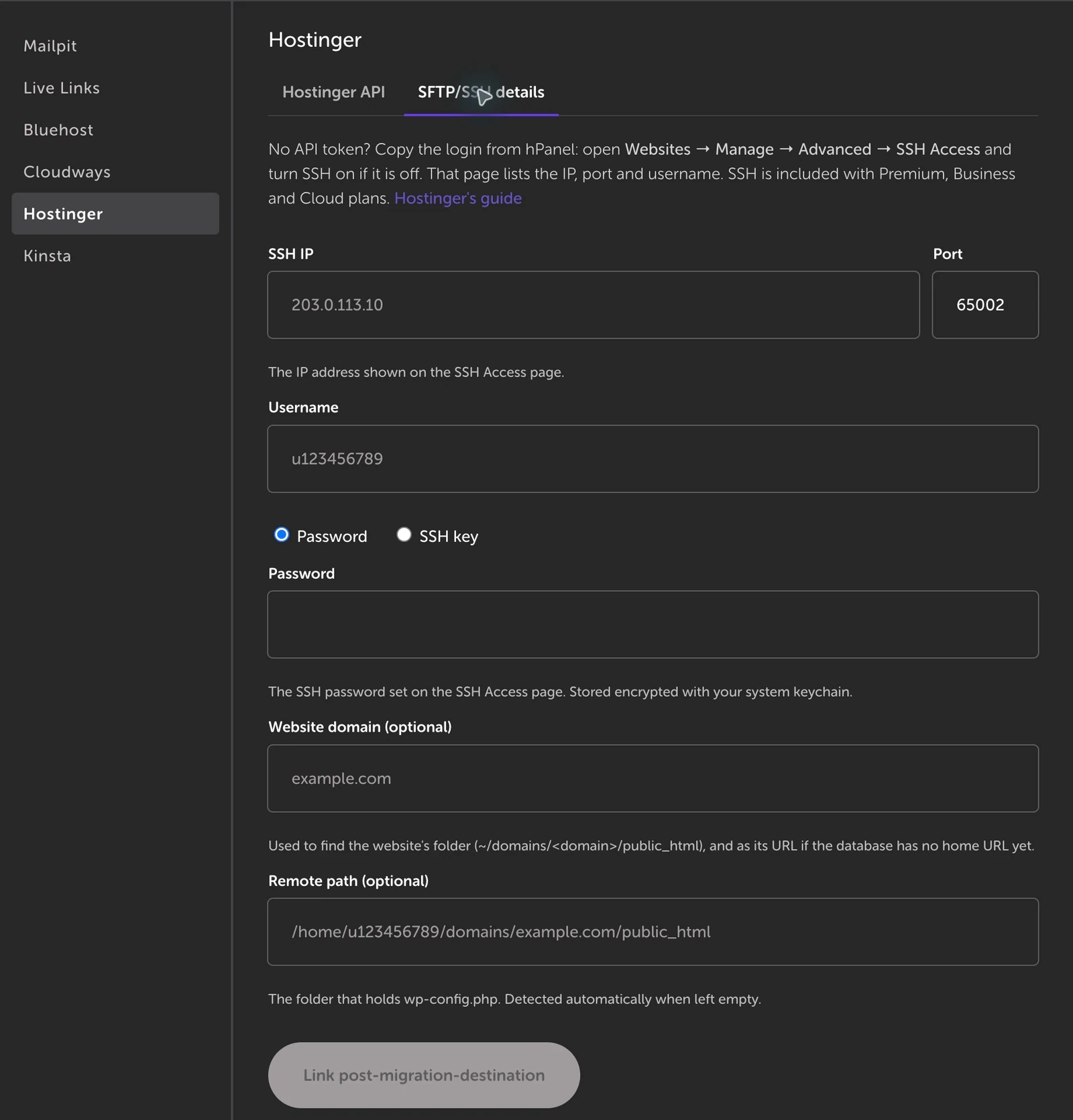
- Open a site in Local and go to Tools → Hostinger. Connect in one of two ways:
- Hostinger API (recommended): paste your API token, pick a website (grouped by hosting account, subfolder installs listed separately) and click Link. Websites that can't be linked, such as disabled ones, are shown greyed out with the reason. The add-on then:
- finds the SSH server from the account's database host, or failing that from the server name in the website's PHP info;
- logs in on port 65002 as the hosting account user with Local's SSH key, or with the SSH password if you typed one;
- finds the WordPress folder (
~/domains/<domain>/public_html, plus the subfolder for a subfolder install); - notes the other websites and subdomains kept inside that folder, so a push never touches them.
- SFTP/SSH details: enter the IP, port (65002), username (
u123456789) and password, or use Local's key, as shown on the SSH Access page. Add the website's domain so the add-on can find its folder (~/domains/<domain>/public_html; if WordPress isn't there, linking stops instead of picking another website of the account), or type the remote path yourself.
- Hostinger API (recommended): paste your API token, pick a website (grouped by hosting account, subfolder installs listed separately) and click Link. Websites that can't be linked, such as disabled ones, are shown greyed out with the reason. The add-on then:
- To log in with Local's own key, copy the public key shown in the panel and add it on the SSH Access page (SSH keys → Add SSH key). Then link the site again.
- Push or pull from the panel's Push to Hostinger / Pull from Hostinger tabs. Once the site is linked, you can also use the Hostinger: Pull / Push buttons in the site header.
- Push options: Files and/or Database; delete files on Hostinger that aren't in Local (on by default, like WP Engine); clear Hostinger caches afterwards.
- Pull options: Files and/or Database; back up the Local database first; delete Local files that aren't on Hostinger (on by default).
- Every pull moves the Local files it replaces or deletes into
app/hostinger-backups/pull-<time>/instead of discarding them. The last 3 are kept.
Progress appears in Local's site overlay. When the transfer finishes, a banner reports success or the error.
How the SSH server is found
Hostinger's hosting API returns no SSH details, and SSH keys can only be added in hPanel. When you link through the API, the add-on works out the login itself:
- Host: the
hostof the account's databases (srv123.hstgr.io, say) is the same machine that serves SSH. If the account has no database listed, it reads the website's PHP info and takes the server name from itsSystemline (us-imm-web123.main-hosting.eu). If neither works, the error asks you to link with SFTP/SSH details from the SSH Access page instead. - Port and username: 65002 and the hosting account user, as on every shared and cloud plan.
- Login: Local's key first. If the server refuses it, the SSH password you typed (stored encrypted). Without one, the error tells you to add Local's key on the SSH Access page. A connection that times out or is refused usually means SSH is off for the website, or the plan doesn't include it.
Agency Plan websites list their SSH login in the Agency API, and the add-on uses it as given.
Pull a Hostinger website into a new Local site
- Click + (Create a site) in Local and choose Pull from Hostinger.
- Pick the website, or enter SFTP/SSH details. Name the Local site; it defaults to the website's title.
- Click Create site & pull. The connection is checked first, so a wrong login never leaves an empty site behind.
Compare & sync files (selective sync)
Go to Tools → Hostinger → Compare & sync files and click Compare with Hostinger. Nothing changes until you choose files. Differing files are listed under Different on each side, Only in Local and Only on Hostinger. Tick files, then click Push selected or Pull selected. A ticked file that exists only on the receiving side is deleted there. The database is never touched.
WP-CLI and proc_open
Hostinger's shared servers list proc_open in PHP's disable_functions. WP-CLI needs it for wp db export, import, query and reset, which otherwise fail with "Cannot do 'Process::run'". The add-on checks for it when it connects and, where it is disabled, runs WP-CLI as php -d disable_functions= /usr/local/bin/wp …, which lifts the restriction for that one command only. Nothing on the server is reconfigured.
What a database push does
- Exports the Local database and rewrites MySQL 8
utf8mb4_0900_*collations to ones MariaDB accepts. - On Hostinger, saves the current database to
local-backup-before-push.sqlin a private folder for this website,~/.hostinger-connect/<website folder>(mode 700, outside every webroot, one per website so websites of the same account never share it). It also reads the currenthomeURL andtable_prefix. - Uploads the dump to that folder, then runs
wp db resetandwp db import. If the import fails, it restores the backup automatically. The uploaded dump is always deleted afterwards.- When the database also holds another site's tables (a different table prefix, such as a second WordPress in a subfolder), it drops only this site's tables instead of resetting the whole database, and the backup holds only those tables. If the Local site's table prefix would overwrite the other site's tables, the push stops before changing anything.
- Sets
table_prefixto match Local if the two differ. - Runs
wp search-replaceacross all tables (only this site's prefix in a shared database;--precise,guidskipped) from//site.localto the Hostinger URL, including the JSON-escaped form, plushttp://→https://when the Hostinger site uses HTTPS.
What a database pull does
- On Hostinger, exports the database with
--single-transaction(the live site isn't locked), downloads it and deletes the export. - Makes the dump importable by Local's MySQL. It removes the MariaDB "sandbox mode" line and rewrites
uca1400collations. - Saves the Local database to
app/sql/local-backup-before-pull.sql(optional). - Imports through Local's own WP-CLI service. If the import fails, it restores the backup.
- Matches Local's
table_prefixto Hostinger's, then replaces the Hostinger URL and the website's other domains (parked domains, thewww/non-wwwtwin, and for Agency Plan websites their other domains and preview domain) with the Local URL.
Backups
Hostinger's API has no backup endpoint for web hosting (only for VPS), so the add-on can't take a Hostinger backup before a push. Hostinger makes automatic backups of every website; restore one in hPanel under Websites → Manage → Files → Backups. On top of that, every database push keeps the previous database as local-backup-before-push.sql in the website's private folder (see above), and every pull keeps the Local files it replaced.
Caches
After a push (option on by default), the add-on clears:
- Hostinger's server cache and CDN, through the API (
DELETE …/cache/clear, with the subfolder for a subfolder install; Agency Plan websites use the Agency API's cache endpoint). Only for websites linked through the API; a site linked with SFTP/SSH details gets the two steps below; - WordPress's object cache, with
wp cache flush; - the LiteSpeed Cache plugin's page cache, with
wp litespeed-purge all(when the plugin is active).
A failed cache clear is reported as a warning; the push itself has already succeeded.
What is never transferred
These are excluded in both directions, and excluded paths are also protected from --delete:
- Server config:
wp-config.php,.htaccess(Hostinger's carries LiteSpeed rules),.htaccess.bk,.user.ini,php.ini,wp-cli.yml - Hostinger's own webroot files:
.private/(hPanel's config folder) anddefault.php(the placeholder page of a new website) - Hostinger's must-use plugins:
wp-content/mu-plugins/hostinger-*.php(auto-updates, preview domain). Its regular plugins (hostinger,hostinger-easy-onboarding,hostinger-reach,litespeed-cacheand so on) are transferred like any other plugin. llms.txt: Hostinger generates it from the live site's content, so each side keeps its own- Caches and drop-ins:
wp-content/litespeed/,object-cache.php,advanced-cache.php,wp-content/cache/ - Server-specific state:
wp-content/jetpack-waf/,wp-content/upgrade/,wp-content/upgrade-temp-backup/ - Migration-plugin backups:
wp-content/ai1wm-backups/,wp-content/updraft/ - Other websites, subdomains and WordPress installs kept in subfolders of the webroot
- VCS and tool binaries, root-level
*.sqldumps, Local's helper files
Must-use plugins that exist only on the receiving side are never deleted.
To skip more, add rsync patterns (one per line) to app/public/.hostinger-push-ignore or .hostinger-pull-ignore. These work like .wpe-push-ignore and .wpe-pull-ignore.
Several websites in one hosting account
One Hostinger account usually hosts many websites, each in ~/domains/<domain>/public_html, and a subdomain or a staging copy can live as a folder inside another website's public_html. The add-on keeps them apart:
- each link points at one website's folder (and subfolder, for a subfolder install);
- folders of other websites and subdomains inside that folder are excluded from every transfer and never deleted;
- the private folder for dumps is per website.
Themes and plugins symlinked from elsewhere
A theme or plugin that you develop in another folder and symlink into the Local site (for example wp-content/themes/mytheme → ~/code/mytheme) is pushed as real files, because the server has no such folder to point to. It is never pulled into: a pull leaves the symlink and the folder it points to untouched. Symlinks within the site stay symlinks, and broken symlinks are skipped (and logged).